Get single value
Executes a SQL command in a SQL Server database which returns a single value.
Example 
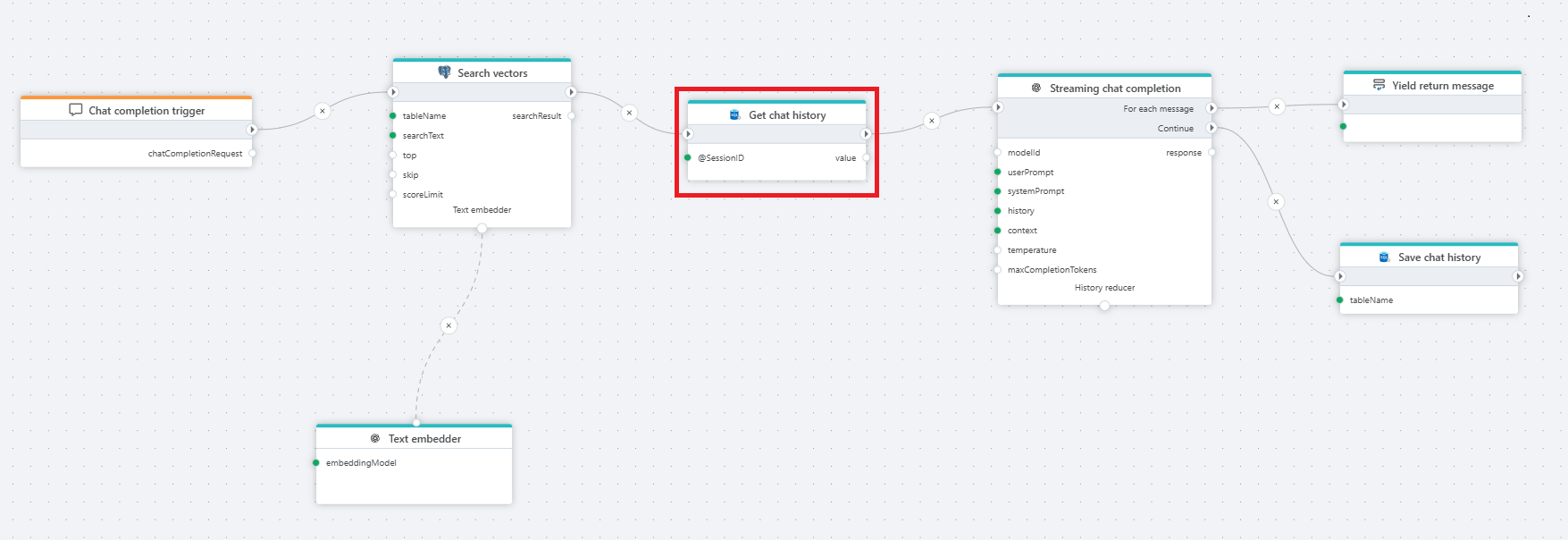
The example above shows a Flow that provides chat completions to a chat client. We're using PostgreSQL vector search to enable RAG, and SQL Server (Get single value) to store and retrieve the chat history so that users can ask follow-up questions.
Properties
| Name | Type | Description |
|---|---|---|
| Title | Optional | A descriptive title for the action. |
| Connection | Required | The SQL Server Connection. |
| Dynamic connection | Optional | Use this option if you need to use a connection created by the Create Connection action. |
| SQL expression and parameters | Required | The command to execute along with any parameters. |
| Result variable name | Required | Name of the variable. |
| Result variable type | Required | Type of the variable. |
| Command timeout (sec) | Optional | The time limit for command execution before it times out. Default is 120 seconds. |
| Description | Optional | Additional notes or comments about the action or configuration. |
Returns
Returns a .NET value of the type specified by Result variable type.
Example: How to use parameters
To use parameters in the query, declare and assign variables in the SQL parameters property.
Then use the parameters in the query.
SELECT [Name] FROM Users WHERE UserId = @UserId
Example: How to use variables in the command expression
To use Flow variables in a SQL query as part of the expression, you need to first declare a variable as Global and assign a value to the variable.
Then, enclose the variable in curly brackets like with the TableName variable shown in the example below.
-- We have declared a Flow variable named TableName and assigned a value to it in a previous action.
SELECT [Name] FROM {TableName} WHERE UserId = @UserId
SQL Server: Videos / Getting started
This section contains videos to help you get started quickly working with Azure SQL / SQL Server using Flow.
Dump CSV file from Azure Blob container to Azure SQL table
This video demonstrates how to import all records from a CSV file into an Azure SQL table.
In the demo, no data import options (such as data type conversion, number or date formatting) are specified, meaning the data is imported as raw text.